See Paloma before you sign in.

Real screens from Paloma Clinical and Paloma Talent, built from the product with synthetic data. Every patient, clinician, prospect, address and phone number here is fictional; the layout, states and rules are the ones agencies use every day.

Prefer to read first? Paloma Clinical · Paloma Talent · For pharmacies · Pricing

Screens

Paloma Clinical

The patient chart

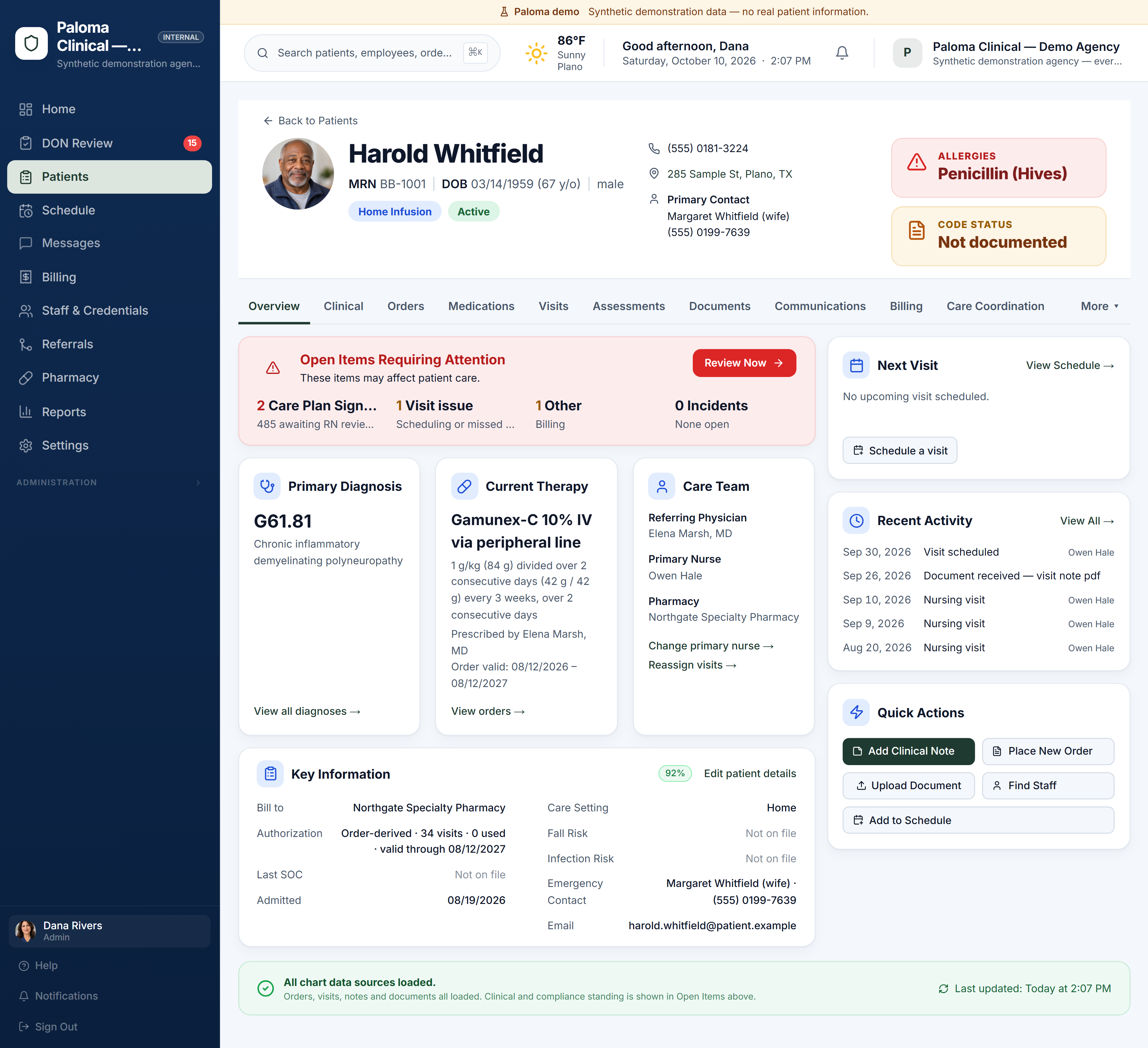
One record for the patient: the governing order, primary diagnosis, care team, key information, next visit and every recent event. When nothing is open, the chart says so; when something is, it says exactly what.

  • One governing order at a time; a revised order supersedes, it never duplicates
  • Allergies and code status always in view
  • Next visit and recent activity beside the record, not in another screen
How Clinical works →

The first screen of a patient chart in Paloma Clinical: the patient, allergies and code status, the open items requiring attention, primary diagnosis, current therapy, care team, next visit and recent activity.

Agency administration is a desktop workflow. Want to see Paloma on a phone? Explore the Mobile Product Tour →
Clinical → Talent

Find Staff, from inside the chart

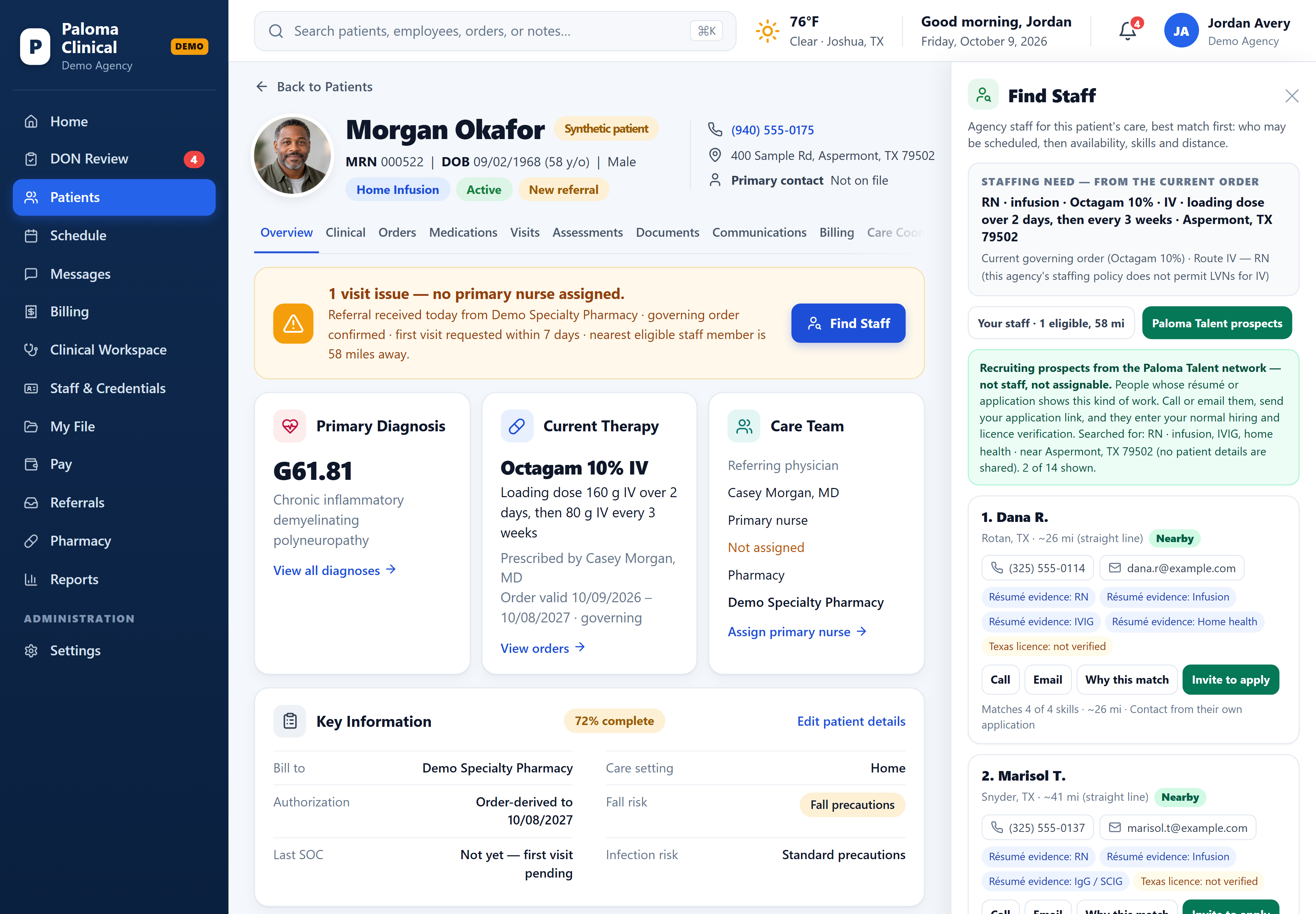
A new referral in a town where you have no nurse nearby. Paloma reads the staffing need from the current order, checks your own eligible staff first, then, with Paloma Talent, expands the same need to prospects near the patient. Call, email or invite them to apply without leaving the chart.

  • Own staff first, ranked by readiness, skills and distance
  • Talent prospects show why they matched; licences read “not verified” until your agency verifies them
  • No patient details leave the chart

How Talent works →

Find Staff open beside a patient chart in Paloma Clinical, showing the staffing need, own staff first and Paloma Talent prospects near the patient.

Agency administration is a desktop workflow. Want to see Paloma on a phone? Explore the Mobile Product Tour →
Schedule & Coverage

See the schedule, the gaps, and the next action.

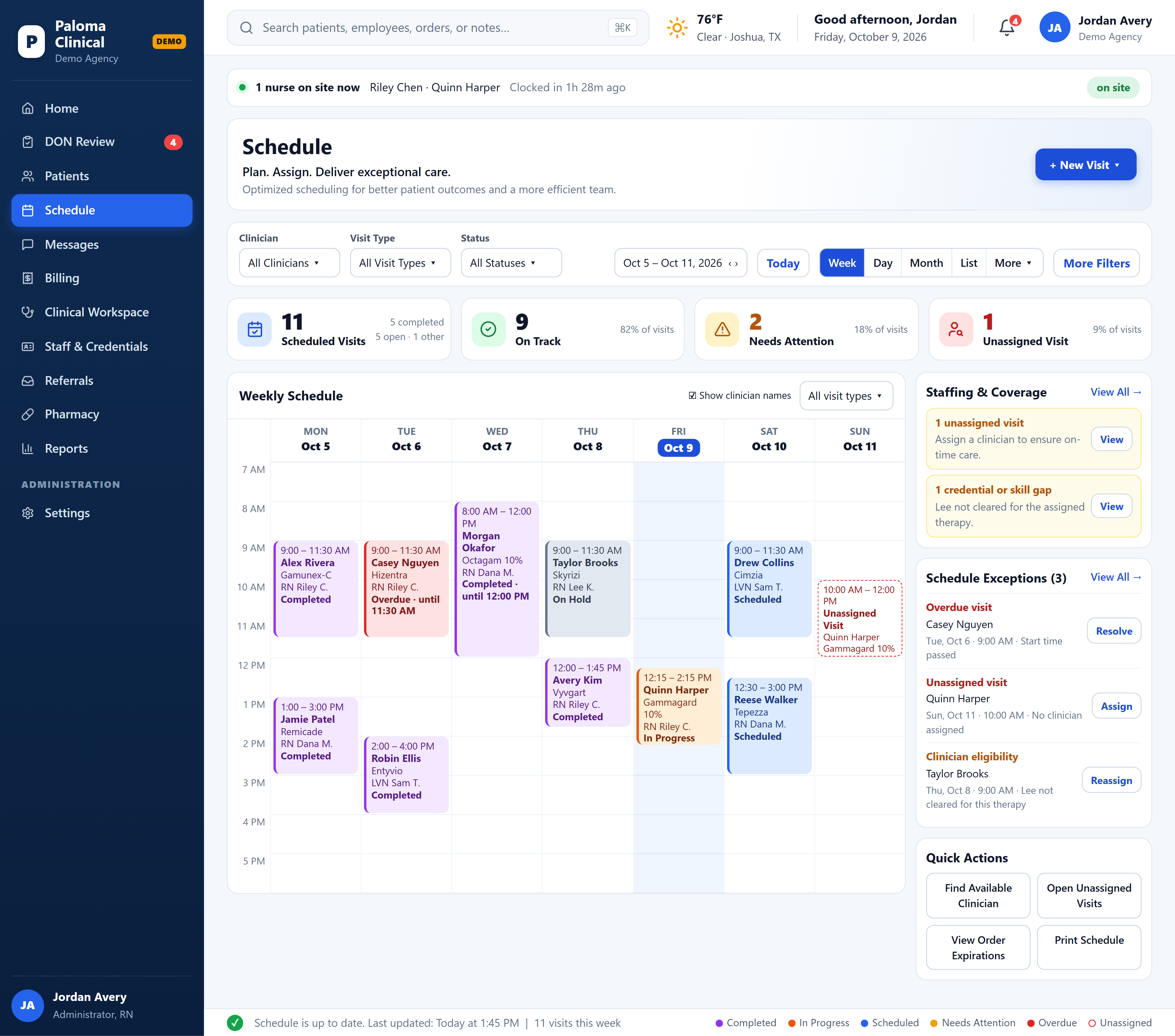
Plan care by week, day, month or list. Paloma brings visit status, assignments, exceptions and coverage into one operational view, so coordinators can see what is on track, what needs attention and where staffing action is required.

  • Week, day, month and list views of the same schedule
  • Status at a glance: Completed, In Progress, Scheduled, Needs Attention, Overdue and Unassigned
  • Exceptions beside the schedule: unassigned visits, overdue work and clinician eligibility issues
  • Coverage connected to staffing: when a visit needs coverage, move toward finding an available clinician
The weekly schedule in Paloma Clinical: visits across the week coloured by status, counts of scheduled, on-track, needs-attention and unassigned visits, staffing and coverage gaps, and schedule exceptions beside the calendar.
Week: Coordinate the working week, assignments and exceptions in one view. Synthetic agency; every patient and clinician shown is fictional.
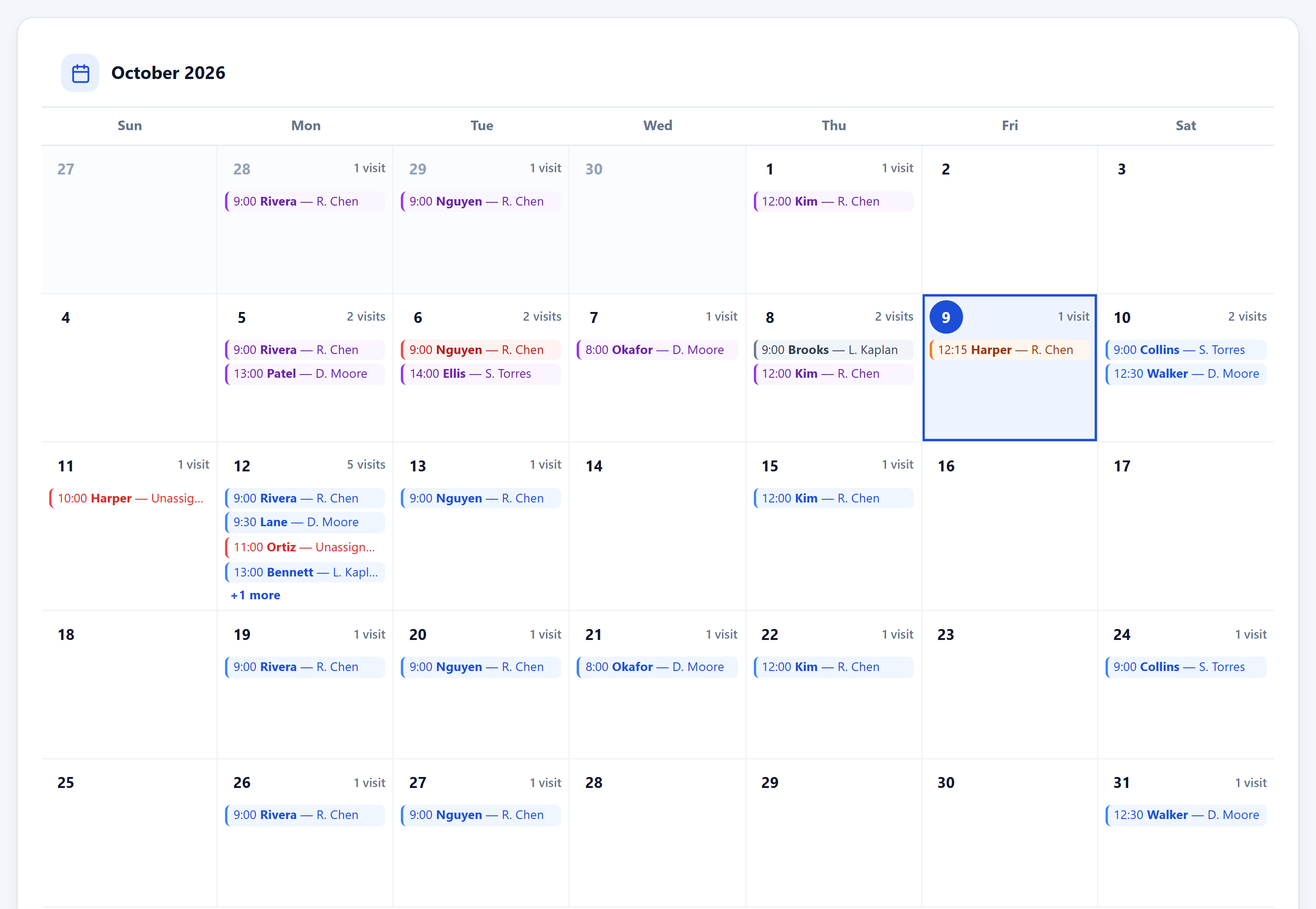
Month

See upcoming workload and coverage across the month.

The Month view of the schedule: visits per day across the month with the clinician assigned to each.
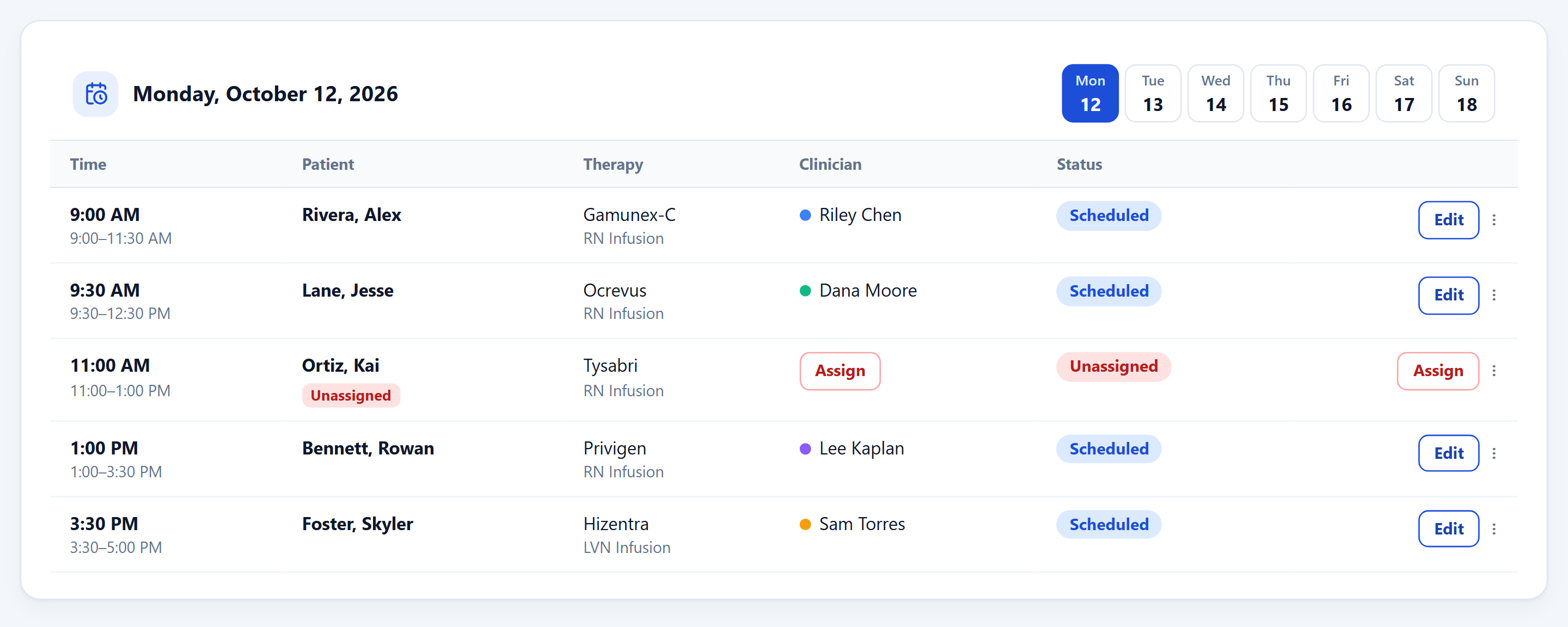
Day

One day’s visits in time order, each with its therapy, clinician and status. An unassigned visit can be assigned from its row.

The Day view of the schedule: one day’s visits in time order with therapy, clinician and status.
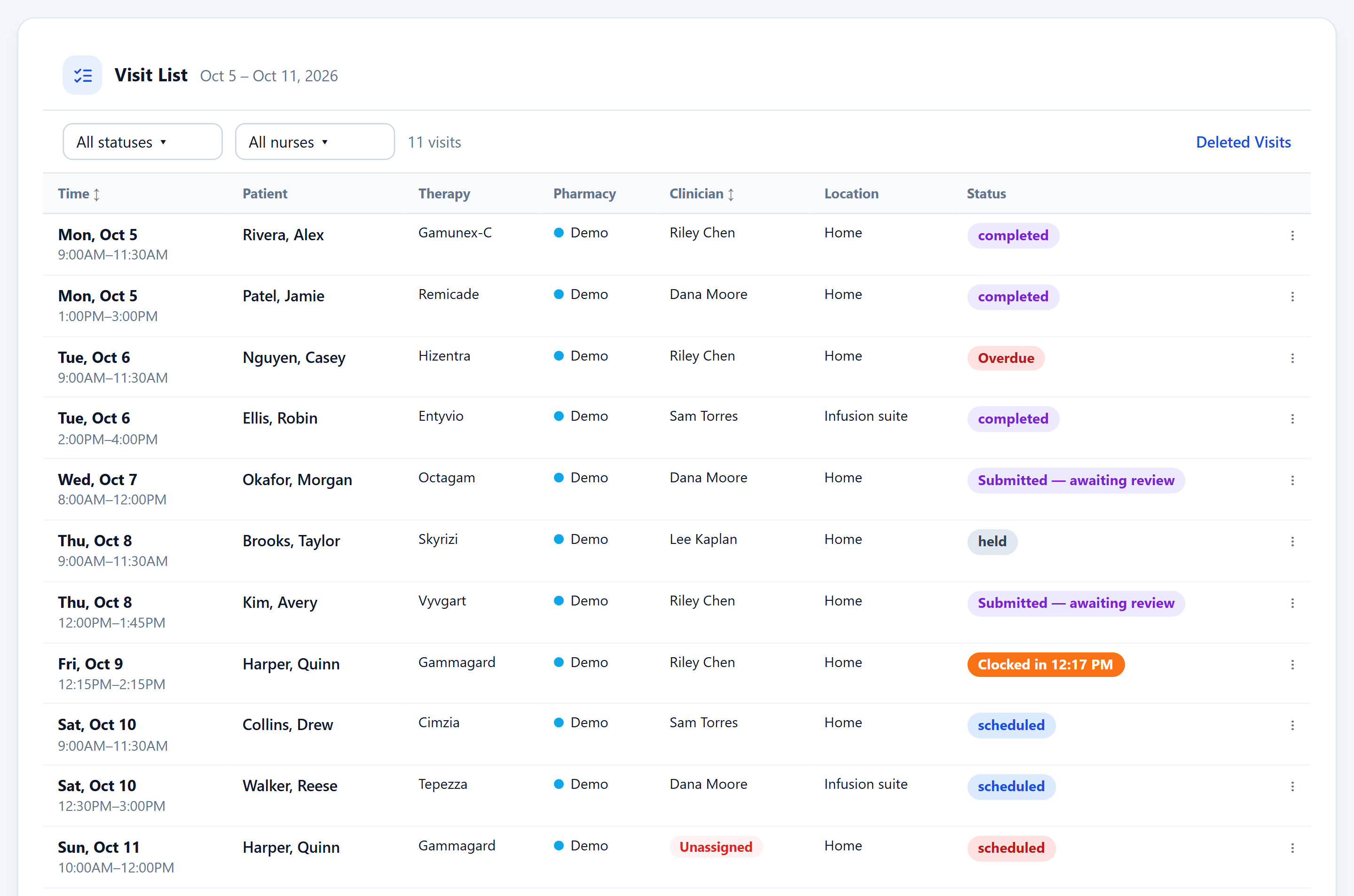
List

Review visits as an operational queue with status, clinician and care details.

The List view of the schedule: visits as rows with patient, therapy, pharmacy, clinician, location and status.
Workforce readiness

One file per clinician

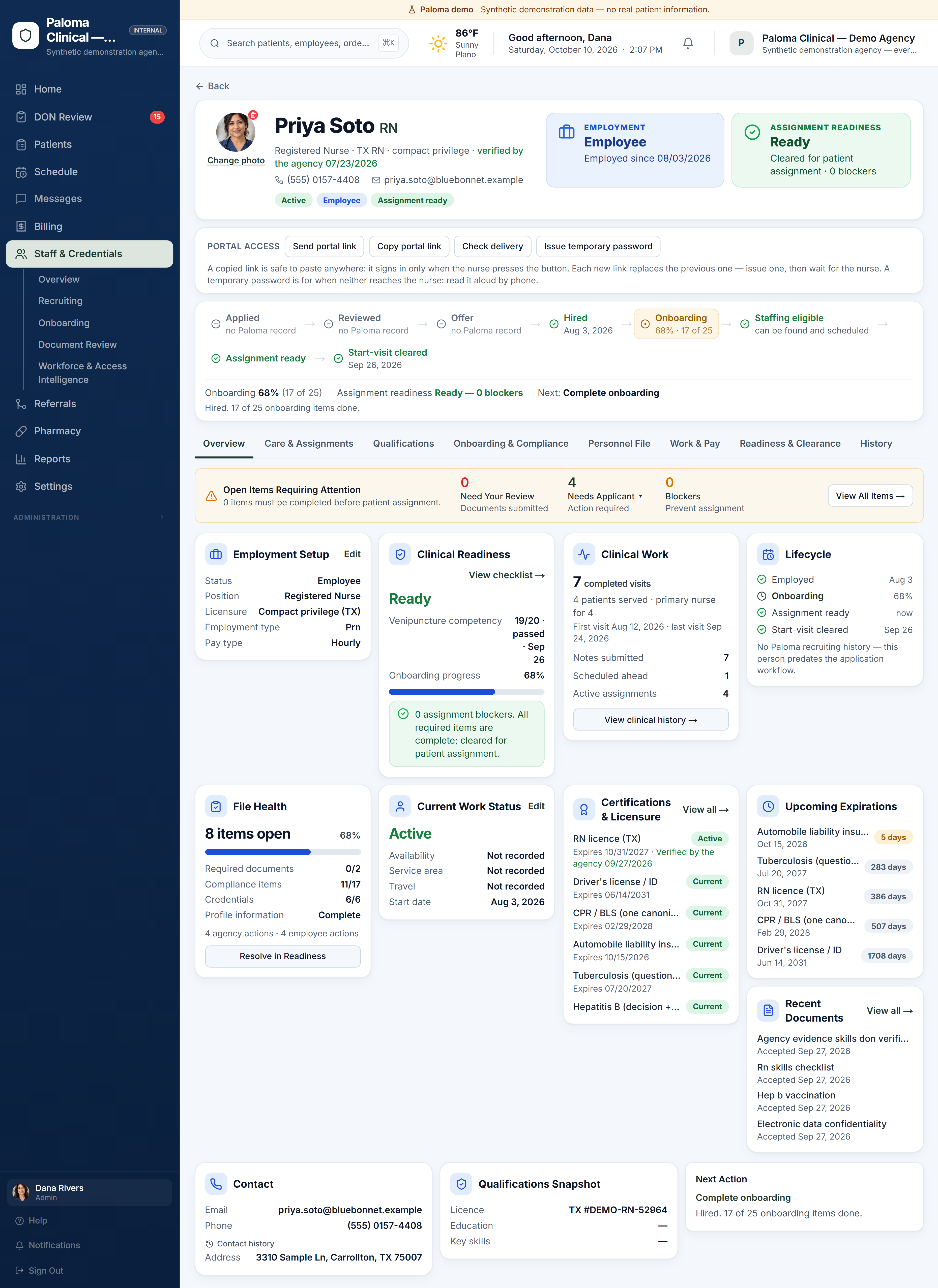
Application, review, offer, hire, onboarding, staffing eligibility, assignment readiness and start-visit clearance in one chain, with licence, certifications, competencies and expirations beneath it. Readiness is computed from what is on file, so the answer to “who can I send?” is already there.

  • Expirations surfaced before they block a visit
  • Portal access without passwords in writing
  • Clinical work recorded on the same file

Staff readiness in Clinical →

The first screen of an employee workfile in Paloma Clinical: employment status, assignment readiness, portal access, the hiring-to-clearance chain and the items still open, above the first cards of the file.

Agency administration is a desktop workflow. Want to see Paloma on a phone? Explore the Mobile Product Tour →
Billing and revenue cycle

From reviewed care to payment

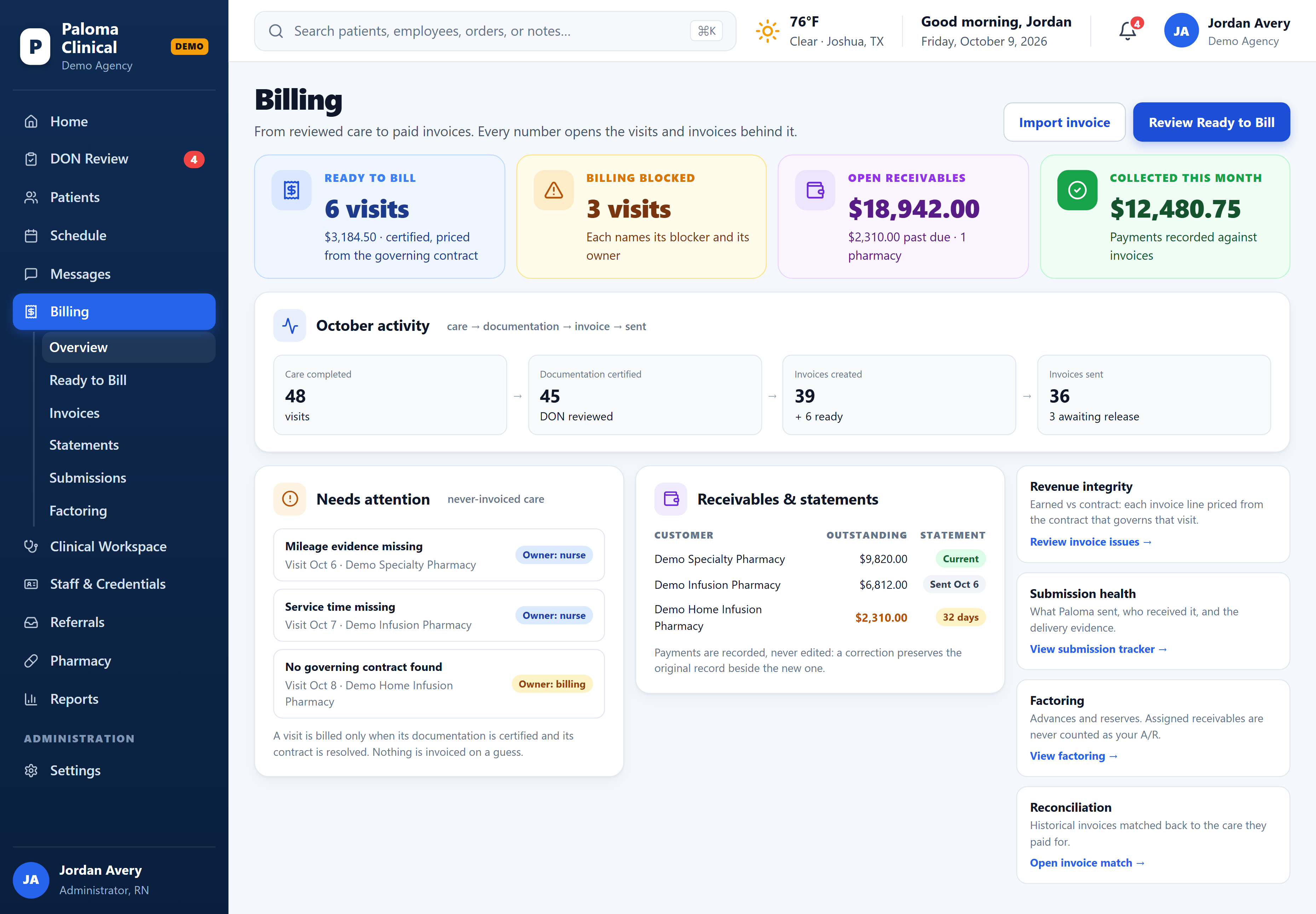
Paloma does not stop when the nurse finishes the visit. Certified visits are priced from the contract that governs them and become pharmacy invoices; anything that cannot be billed says why and who owns the fix. Receivables, statements, payments, factoring and reconciliation sit on the same screen.

  • Ready to bill only when documentation is certified and the contract is resolved
  • Every blocked visit names its blocker and its owner
  • Payments recorded, never edited; factored receivables never counted as your A/R

Billing in Clinical → · For pharmacies →

The Billing overview in Paloma Clinical: visits ready to bill, billing blocked with each blocker and its owner, open receivables, payments collected, the month from care completed to invoices sent, and statements per pharmacy.

Agency administration is a desktop workflow. Want to see Paloma on a phone? Explore the Mobile Product Tour →
More screens (scheduling, DON Review, pharmacy submissions) are added here as they are prepared. For a walkthrough around your own referrals, pharmacies and staff, book a guided demo.

See your workflow in Paloma.

Explore the live demo agency now, or book a guided demo around your own referrals, pharmacies and staff.

The demo agency uses synthetic data, no card · create your agency when you are ready (first month charged at checkout)

Demo agencyBook a demo